Adding or Editing an RSM Service
Use the Add or Edit buttons to update your list of RSM configurations in CygNet Host Manager. Adding a Remote Service Manager (RSM) service to CygNet Host Manager requires you to specify the location of the RSM directories to use, the run type details, and domain information. You can also edit an RSM service to change details about those properties.
Note: You must stop the service prior to making any changes.
Adding or Editing Properties of an RSM Service
To Add an RSM to CygNet Host Manager
- Open CygNet Host Manager.
- On the Service Status page, click Add to access the CygNet Remote Service Manager Host Settings dialog box.
- In the Directories section, define the file directory location(s) for the RSM service you are adding.
- Define the Executable directory. Click … to browse to the directory containing the service executable file, and then click OK. If the directory that you select does not contain the RSM.exe file, the dialog box will show an error, for example, * Service executable not found *. Often this location will be the same as is used for the configuration data file, so the data directory field is simultaneously populated by default; if not using the same location, specify the additional directory path.
- Optionally define the Data directory. If the RSM configuration file and the service executable file are located in different directories, click … to browse to the directory containing the configuration data file, and then click OK. If the directory that you select does not contain the Rsm.cfg file, the dialog box will show an error, for example, * Service config file not found *. When the file location is specified, the service name, in Site.Service format, and its current operational status are displayed in their respective fields at the top of the dialog.
- In the Run type section, define the service run type by selecting one of the following options.
- Click Run as user process to run the RSM as a user process. Define domain details via command-line parameters.
- Click Run as service to run the RSM as a system service. Configure the following to complete the selection.
- Select the Startup type.
- Specify a Log on account. For additional selection options, click ... to access the Select User dialog box.
- Enter a Password and then confirm it
- If running the added RSM as a user process, the domain is specified via command line. If running the added RSM as a system service, specify the domain as follows.
- Click the Use default check box to select/clear whether or not to use the default domain.
- If not using the default domain, type the service Domain ID into the text box for the RSM you are adding.
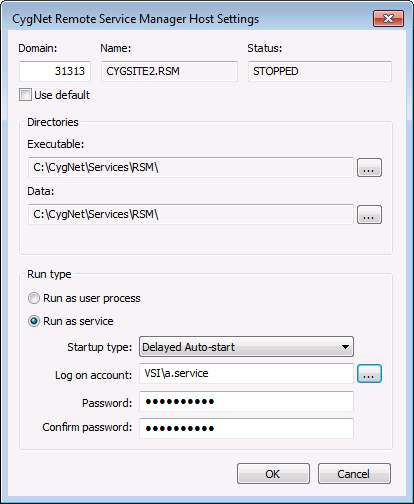
CygNet Host Manager utility
- Click OK. The added service will appear in the list of RSM configurations.
Notes:
CygNet Host Manager shows only the RSMs that are located under the same CygNet\Services root file location. For example, if you add four RSMs to CygNet Host Manager, and all four are located under CygNet\Services, then all four RSMs will be listed. If all four have separate roots, only one will be listed.
RSM service names must be unique, even if located on different domains. For example, [nnnnn]MySite.RSM, [nnnnn]MyOtherSite.RSM, [nnnnn]MySite2.RSM.
To Edit RSM Properties in CygNet Host Manager
- Open CygNet Host Manager.
- On the Service Status page, Stop the services. Services must be stopped prior to changing RSM properties.
- Do one of the following to access the CygNet Remote Service Manager Host Settings dialog box.
- Double-click on the desired RSM configuration entry.
- Click to select the RSM configuration entry and then click Edit.
- In the dialog box, edit the properties of the RSM service as desired. See the RSM properties table below for more information.
- Click OK.
- Start the services for the selected RSM for the changes to take effect.
RSM Properties
The properties on the CygNet Remote Service Manager Host Settings dialog box are described below. The same properties appear when adding or editing an RSM.
| Property | Description |
|---|---|
| [Remote Service Manager Details] | |
|
The Domain ID for the RSM you are adding. |
|
|
The Site.Service name for the RSM you are adding |
|
|
The operational status of the RSM you are adding. Possible values are RUNNING, STARTING, STOPPING, or STOPPED. |
|
|
Click the check box to select/clear the option to use the default domain for the RSM you are adding. |
|
|
Directories |
|
|
Provide the directory path on the server where the RSM.exe file is located. Use … to select the location. |
|
|
Optionally specify a directory separate from where the RSM executable is located. If located in a different directory, provide the directory path on the server where the RSM data file is located. Use … to select the location. |
|
|
Run Type |
|
|
Select to run the RSM as a user process. When selected, the RSM runs as a command-line process and details are specified via a Command window using command-line parameters. |
|
|
Select to run the RSM as a system service. When selected, additional options become enabled to complete the configuration (see following table entries). Once the details are specified, the RSM runs as a system service and an entry is added to the services management console (for example, CygNet MYSITE.RSM Service). |
|
|
If running as a system service, select the startup type for the system service. Options include the following.
Note: If set to Manual, you must start the service manually when the server reboots. |
|
|
If running as a system service, specify an appropriate log-on account. Click ... to access the Select User dialog box to make your selection. |
|
|
If running as a system service, type a password into the text box. |
|
|
If running as a system service, retype the password to confirm. |
|


